Posted by Ann Westerheim on Thu, Mar 28, 2013 @ 08:32 AM
March is the anniversary of the Massachusetts Data Security Law which went into effect March 1, 2010: 201 CMR 17.00: Standards for The Protection of Personal Information of Residents of the Commonwealth. The anniversary is a good time to refresh your team about the requirements!
The goal of the law is to help prevent identity theft and we all have a role to help.
Here are the eight technology requirements included in this law:
1. Secure user authentication protocols including:
(i) control of user IDs and other identifiers;
(ii) a reasonably secure method of assigning and selecting passwords, or use of unique identifier technologies, such as biometrics or token devices;
(iii) control of data security passwords to ensure that such passwords are kept in a location and/or format that does not compromise the security of the data they protect;
(iv) restricting access to active users and active user accounts only; and
(v) blocking access to user identification after multiple unsuccessful attempts to gain access or the limitation placed on access for the particular system;
Use of STRONG passwords is required (uppercase letters, lower case letter, numbers, and symbols) and NEVER put your password on a post-it by your monitor, or under your keyboard or anywhere else that's easily accessible!
2. Secure access control measures that:
(i) restrict access to records and files containing personal information to those who need such information to perform their job duties; and
(ii) assign unique identifications plus passwords, which are not vendor supplied default passwords, to each person with computer access, that are reasonably designed to maintain the integrity of the security of the access controls;
If an employee doesn't need access to personal information to do their job, make sure they can't get to it. This is very important if multiple users share a system.
3. To the extent technically feasible, encryption of all transmitted records and files containing personal information that will travel across public networks, and encryption of all data to be transmitted over a wireless network.
Do not email personal information. Instead use SSL transmission of data to secure web sites.
4. Reasonable monitoring of systems, for unauthorized use of or access to personal information;
Are logs routinely checked? There are several great tools to help you decipher server logs to get the information you need.
5. Encryption of all personal information stored on laptops or other portable devices;
Laptops MUST have encryption technology. Other portable devices such as flash drives must also be protected. Backup tapes (if used) must be encrypted.
6. For files containing personal information on a system that is connected to the Internet, there must be reasonably up-to-date firewall protection and operating system security patches, reasonably designed to maintain the integrity of the personal information.
7. Reasonably up-to-date versions of system security agent software which must include malware protection and reasonably up-to-date patches and virus definitions, or a version of such software that can still be supported with up-to-date patches and virus definitions, and is set to receive the most current security updates on a regular basis.
Do you know if your security patches and Antivirus definitions are up to date?
8. Education and training of employees on the proper use of the computer security system and the importance of personal information security.
Users often break basic rules for “convenience” so they can get their work done faster. Ongoing education is needed!
In your next team meeting, review these requirements and make sure everyone understands the importance of compliance. For more information, visit the Massachusetts Office of Consumer Affairs and Business Regulations web site. Give us a call if you'd like us to review your site security with you.
Posted by Ann Westerheim on Wed, Mar 20, 2013 @ 09:00 AM
One of the things we strongly advise our clients to get on board with is proactive monitoring of all their systems with our managed services. With this service, we monitor all systems for a long list of parameters including Antivirus software updates, Security Patch updates, system performance and when capable, S.M.A.R.T monitoring of hard drives.
S.M.A.R.T definition from Wikipedia:
"S.M.A.R.T. (Self-Monitoring, Analysis and Reporting Technology; often written as SMART) is a monitoring system for computer hard disk drives to detect and report on various indicators of reliability, in the hope of anticipating failures. When a failure is anticipated by S.M.A.R.T., the user may choose to replace the drive to avoid unexpected outage and data loss."
Recently, Brian rescued a client's system when he received a SMART alert that the hard drive was showing signs of failure. Rather than waiting for the drive to fail, and potentially risking the client's data, we went ahead and initiated the the process to replace the drive. The system was still under warranty with Dell, but the problem was that the drive hadn't failed yet, so initially they wouldn't proceed with the warranty replacement, and Brian replaced the drive.
Brian didn't give up, though, and wrote to Dell:
Dell Support,
In regards to hard drive replacement policy, Waiting till the hard drive FAILS is NOT a good policy for Helping customers. In our case we use remote monitoring and management software that is extremely reliable and efficient at reporting errors, and when is a SMART Error you need to take notice.
We have provided our services and resources to take care of YOUR Customer and ours By acknowledging that an ERROR from SMART needs attention and should never be taken lightly we purchased an identical replacement drive, was able to quickly and efficiently save the customers data and get them back up and running with no loss.
Any customer regardless of how many computers they purchase, from 1 to 10,000 are equal.
Waiting for the hard drive to fail is like closing the Barn doors after the horses have run off, it's too late.
I have been a PC/Server tech for over 20 years and I know how hard it is to repair an intermittent problem But when reliable monitoring tells you there's a problem, there is a problem. Computers know 2 things. 1's & 0's.
And as you know if one of them is out of place.. problems happen. People can hide what their problems are, computers can't. Preventing a Problem from happens before it happens is GOOD for Business for Both of us.
I hope you would consider replacing the hard drive, I see the Man. Date is either 6/2012 or 8/2012 and the SMART reporting started to show a problem on 01/28/2013 04:25 AM.
I have the Hard drive ready to ship.
Brian Brackett
Help Desk Tech
Ekaru
Dell eventually stepped up and honored a parts replacement of the hard drive and shipped back a drive. Being proactive saved the aggravation of a failed system and potential data loss. Even with an almost brand-new system, a hard drive can fail (in fact, if you think about a disk spinning at 7200 RPM, it's a miracle that any hard drive can work!). Hard drives are the most common failure point in PCs, and proactive monitoring is definitely advised.
Posted by Ann Westerheim on Thu, Mar 07, 2013 @ 07:43 AM
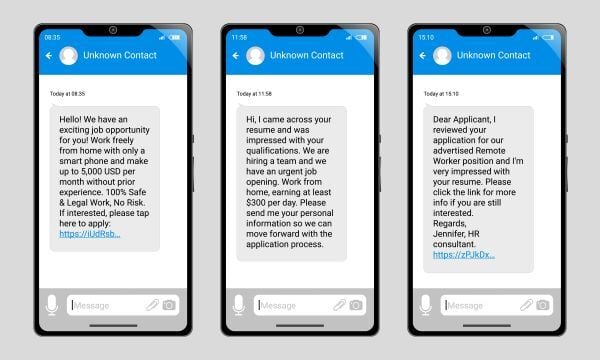
One of the services we provide to our clients is spam filtering. The goal is to stop the spam BEFORE it gets to the mail server so it doesn't wind up on the users' desktop, laptop, iPad, smart phone, etc.... Each month when we do the reporting and roll up the numbers, it's amazing how much volume there is. Overall, around 80% of all email traffic is flagged as spam. For some of our clients, this means blocking out tens of thousands of messages a month. I looked at our own domain yesterday, and in February, over 10,000 messages were blocked or quarantined, including 348 emails containing viruses.
One of the frustrating things is that with all the sophisticated algorithms involved with the spam security filters we put in place, some spam still gets through. Just yesterday we heard from two clients who reported receiving a spam message that to any human reviewing the email, the disposition should be obvious, but to a computer scanning thousands of messages with respect to certain algorithms, a few get through. In both cases, we saw "Breaking News" emails where for one user, the server logs showed that one email got through and seven were blocked in the past week, and for the other users, one got through, and 65 were blocked/quarantined. In this case, we can see that the filters ARE working, but they are not 100%. For a message with carefully crafted language, the initial emails typically get through, and it isn't until the volume of identical messages is detected that the rest get properly dispositioned as spam.
It's annoying for all of us that these spam messages just keep coming to us, but at least with good filtering, the vast majority are stopped.
Posted by Ann Westerheim on Thu, Feb 14, 2013 @ 07:58 AM
A few years ago, Microsoft made the operating system upgrade process a LOT easier by introducing the "Anytime Upgrade" process. Windows Anytime Upgrade lets you compare features, select the upgrade, and the entire process only takes as little as 10 minutes. Here is a link from Microsoft with a very short video that describes the process.
A common situation we run into is that a user has purchased the "home" version of an operating system, only to find out later that to connect to a server domain, run certain applications, or run in "XP Mode", they need the "professional" version of the operating system. The different versions of the operating system provide different capabilities that aren't always obvious at first. In the past, this would require a full new installation of the operating system, but "Anytime Upgrade" makes this a lot more simple and saves time.
You can open Windows Anytime Upgrade by clicking on the Start button (Microsoft logo in the bottom left hand corner of your screen). In the search box, type Anytime Upgrade, and then in the results click on Windows Anytime Upgrade. Note that you can only switch from a 32-bit version to another 32-bit version, or a 64-bit version to another 64-bit version, and the upgrade isn't available with some versions of Windows such as Ultimate.
Posted by Ann Westerheim on Wed, Jan 02, 2013 @ 09:27 AM
Did Santa bring you a new Kindle Fire, iPad Mini, or Microsoft Surface for Christmas? If so, probably one of the first things you wanted to do was connect to your home wireless network. To connect, you'll be asked for a "key", which is a code that lets you in (and keeps others out). The common dilemma is that users have set up a wireless network a LONG time ago, recorded the key, and stored it in a "safe place", only to be stumped when you look for it again. The problem is that after you program the key into your laptop or other portable devices, your system "remembers" it, so you end up forgetting.
Don't worry! They key is easy to retrieve. If you have a laptop connected to your wireless network, select the wireless icon in the lower right hand portion of the screen. "Left click" on your mouse to view the wireless networks. (Right-clicking allows you to "troubleshoot problems" and "Open Network and Sharing Center").
After you select the wireless networks icon, you'll see a list of all the wireless networks nearby, including the one you are connected to (in this case, the list is blanked out for privacy and only the first one is showing.) "Right Click" on your network and select "Properties" to view the properties of your network, including the wireless key.
In the "Properties" window, under the "Security" tab, you'll see the "Network Security Key" listed, with characters hidden. To see the actual key, check the box to "show characters", and you'll have your key!
So if the encryption key that you wrote down two years ago is in a "safe place" somewhere, rest-assured you'll also find it stored electronically here. No need to rummage through all your files!
Posted by Ann Westerheim on Tue, Dec 04, 2012 @ 11:56 AM
If you're a superuser on Windows 7, you may feel a bit lost on Windows 8. Bob has enthusiastically been using Windows 8 for a few weeks now, and he recommends getting re-familiarized with the good 'ol keyboard shortcuts. These are the standard shortcuts that work across all Microsoft Windows platforms, such as Ctrl+P to print, etc.
The new interface for Windows 8 marks a major change in how Windows has looked for over the past ten years. You can arrange your icons any way you want, and rest-assured, everything is still there. You may be confused at first when you look for "Documents", but don't worry, all your documents are still there.
Using keyboard shortcuts can help you get around until you get used to how to do things. There are 23 new keyboard shortcuts for Windows 8. The new word is "charms". The old conventional start menu is gone, replaced by the new Charm Bar - this is the universal toolbar in Windows 8. All the standard Windows shortcuts also work. For the entire list of Windows shortcuts, visit the Microsoft web site. A couple of useful shortcuts:
-
Windows logo key
+start typing: search your PC
-
Windows logo key
+C: open the charms
-
Ctrl+plus (+) or Ctrl+minus (-): zoom in and out
-
Esc: Stop or exit the current task
-
ALT+F4: Close the active item
The people most familiar with Windows 7 may be the most lost, and beginners will probably be most comfortable with the graphical interface, but don't slow down! Start exploring, and tell us what you think!
Posted by Ann Westerheim on Thu, Nov 29, 2012 @ 04:15 PM
It's the latest buzz word in technology - the "cloud". Many of our clients are asking about the cloud, so we want to take some of the mystery out of it. The definition from Wikipedia sums is up simply: "Cloud computing is the use of computing resources (hardware and software) that are delivered as a service over a network (typically the Internet)". The name comes from the cloud diagram that is typically used in network diagrams to symbolize the Internet.
The underlying business principle is that you can decrease operating costs by outsourcing applications, hardware and support to the cloud provider. A very popular book that came out a few years ago, The Big Switch, by Nicholas Carr presents the analogy that over 100 years ago, businesses used to generate their own power locally, and then moved to the newly built electric grid, which turned power into a utility. The analogy follows that computing is now turning into a commodity resource and it isn't cost effective to run everything locally.
The concept sounds new and radical, but if you're worried that your behind on this new trend, rest assured you're probably already operating in the cloud but you just don't know it. If you used AOL email in the 90s, you were already in the cloud!
These days, we typically recommend a hybrid approach to computing. We currently manage support for our clients through the cloud with our managed services. We still go on site for installations, and we don't want to lose the personal contact with our users, but much of the support and monitoring we do is through the cloud. Our managed systems report back to us if, for example, antivirus protection isn't up to date and we can remediate most support issues remotely.
Are you running an on-line backup? Then you're in the cloud too. We strongly advise automated, encrypted, backup "to the cloud" to make sure your files are safe. You may think of it as "on-line backup", but you can also talk about it as "cloud backup". If you're still running a tape backup, it's time to change!
If you don't own your own e-mail server, then you're using cloud based email. Many of the industry-specific applications we see our clients working with are also "in the cloud". During the "dot-com" days, it was called the "ASP" model - Application Service Provider. Salesforce.com is one of the major applications used by many businesses for CRM - Customer Relationship Management. Applications "in the cloud" provide much higher capabilities over what could be afforded on a stand-alone server, but when the Internet is down, so are your applications.
The things to think through in your cloud strategy are cost, performance, and reliability. Many small businesses maintain local servers for the performance gains, in parallel to using cloud based applications. If you share files locally, then you always have access to them. If you rely 100% on the cloud, you'll have a problem when the connection speed is slow, or down. Ken Olsen, founder of Digital Equipment Corporation (DEC), famously called PCs "snake oil" years back, and perhaps he was just thinking too far ahead. We don't think it's time to move your PC into the cloud, but we've almost come full circle back to the days of mainframes and terminals. Not there yet, though, and with the low cost of computing, I'm not ready to give up my local apps.
Posted by Ann Westerheim on Fri, Oct 26, 2012 @ 03:19 PM
Whenever there's a mystery regarding a "missing" email, the first thing we look at is if the email is sitting in a spam filter. We always recommend just using one spam filter, preferably "in the cloud" so mail is filtered BEFORE it gets to your mail server, and distributed to your laptop, smartphone, iPad, and wherever else you read your mail.
Recently, I installed a new solid state drive in my laptop, and when I had problems with moving over the disk image, I ended up re-installing Microsoft Office. I didn't realize it at the time, but when I completed the installation, the "Junk" filter was turned "on" by default, and I was breaking one of my major rules - I had TWO filters guarding my mail. A few weeks ago, I was looking for a mail message that I couldn't find, and thought perhaps I had deleted it by mistake, and didn't think much of it. Just this week, a client mentioned an mail message he had sent, and I couldn't find it. "Search" of my inbox didn't reveal the message, but when I looked at the mail history in the "People" pane, there it was. It was sitting in my "Junk" box, which I never check because I'm opposed to using it in the first place!
Changing your "Junk" settings is easy. On the "Home" tab in Microsoft Outlook 2010, click on "Junk" in the upper left hand corner. This will open up a window where you can change your settings.
In the main tab, "options", you can turn off the Junk filter, or select an appropriate setting if you want. You also have the option to select "Safe Senders", "Safe Recipients", "Blocked Senders" and "International" settings. The built in Junk filter does provide a lot of options, and will work well if the only place you read your mail is in Outlook on your main system.
But these days, with so many other devices, we highly recommend a cloud based spam filter so you mail gets filtered BEFORE it gets to your mail server, and you have only one place to check for the invariable "false positives" - those messages that you DO want to receive that get falsely dispositioned as spam.
Next time you find yourself searching for a missing email message, make sure you have only one spam filter running! Two spam filters are NOT better than one!
Posted by Ann Westerheim on Tue, Oct 02, 2012 @ 07:53 AM
In the first few weeks of using a spam filter, we know it's an inconvenience to have to approve senders when it would be obvious to anyone but a computer that it's mail that you want, but you'll be grateful to have the spam filter when you see all the clutter gone from your mailbox. Note that what appears in your quarantine is only the borderline spam content and that the rest of it is blocked in a "black hole". On average, across all the clients we actively manage, around 80% of all incoming mail is blocked or quarantined as spam!
Here's a question we get a lot: "I delivered a message from my spam quarantine, but the next time the person sent a message to me, it wound up in my quarantine again. Why?"
There are actually two steps to the process: delivering and approving.
When you receive your daily Quarantine email (we typically program delivery for 8am daily), you'll see a list of emails that were quarantined in the last 24 hours. This list can be quickly scanned for "false positives", that is, emails that were flagged as spam, but may be things that you want.
From this email, you can quickly hit "deliver" to get the messages you want sent to your "inbox" by simply hitting the "deliver" link. When you do so, you'll see a web page pop up that will say "Your message has been delivered. Close this window". At this point, the message you selected should have been successfully delivered to your inbox. However, if you notice that it's from a sender that regularly emails you (such as an enewsletter, an important customer, a sales promotion, etc), you'll want to take an extra step to "approve" the sender so their mail always gets through. For example, I definitely always want to know when Lands End is having a sale. Their messages are commercial bulk mail, which is considered "spam", but since I always want to receive the mail, I need to "approve" the sender.
To "approve" a sender and not have to click "deliver" every time they send a message, click on the "Message Center" link directly above "Date" on our list of quarantined spam. This will directly you to a screen to log in to the message center. Your "Log in Address" is simply your email address. The password is the password originally assigned in your welcome message when the account was created (not the same as your email password), but don't worry if you don't know what it is. Simply type anything into the Password box, and then you'll see a message "Invalid Login. Please try again" and you'll also see a link "forgot your password?" directly underneath. If you click on this, you'll be directed to a page to reset your password. In our experience, people often don't log into the message center frequently, and they often forget their passwords, so this is a question that comes up often. Don't worry, it's easy to correct.
After you're logged into the message center, you'll see a list of all your quarantined spam messages, but unlike your quarantine email, you'll also have a lot more functionality available through several links.
When you're logged into the message center, you can select one message on the left and hit "Deliver" (button on the right), or you can select multiple messages and hit the "Deliver Selected" above all the "Deliver" buttons.
After the message is delivered, you'll have the option to "Approve Selected Senders" on the next screen:
If you want to pre-approve senders and not wait until messages wind up in quarantine, another way to approve senders is to go to the "My Settings" link. Here, you'll have options to approve senders, block senders, and change your password:
As always, if you have questions or need help, let us know!