Most people picture a cyberattack as something dramatic and obvious. For a small law firm in Greater Boston, the reality is that it usually starts with an email that feels routine and ends with an unexpected phone call.
Read More.png)
Most people picture a cyberattack as something dramatic and obvious. For a small law firm in Greater Boston, the reality is that it usually starts with an email that feels routine and ends with an unexpected phone call.
Read MoreTags: cybersecurity, managed IT services in Boston, managed service provider Boston, small business it support, it support boston, small business cybersecurity, law firm cybersecurity
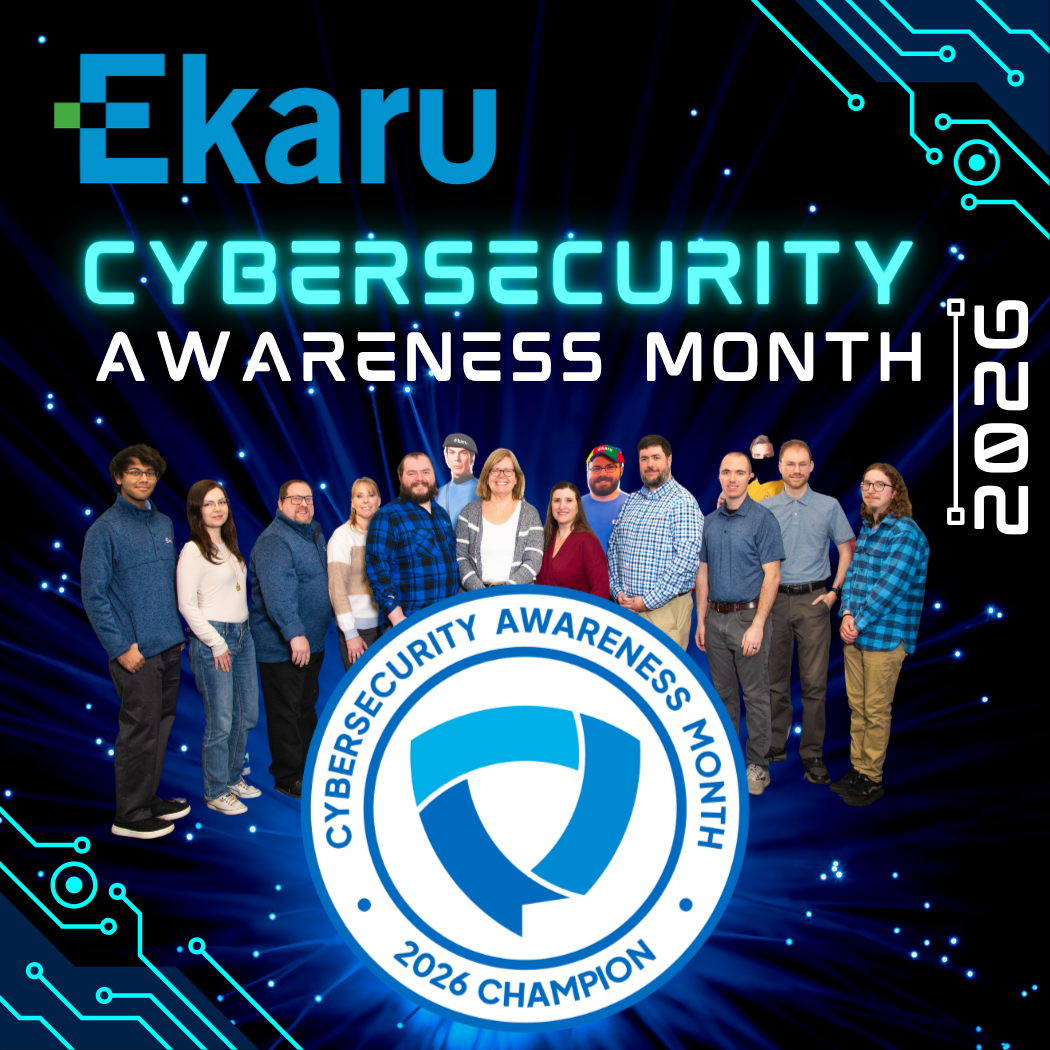
October is Cybersecurity Awareness Month, and once again, Ekaru is proud to be a Cybersecurity Awareness Month Champion.
We’ve participated in the Champion program for many years because its mission closely aligns with our own: helping people and businesses understand cybersecurity and take practical steps to protect themselves.
Cybersecurity Awareness Month was started in 2004 as a collaboration between the National Cybersecurity Alliance and CISA - Cybersecurity & Infrastructure Security Agency.
For us, cybersecurity has never been about creating fear.
It’s about empowerment.
Read MoreTags: Multi-Factor Authentication, cybersecurity awareness month, Ekaru, Microsoft 365 Security
Tags: cybersecurity, managed IT services in Boston, managed service provider Boston, small business it support, it support boston, small business cybersecurity, cybersecurity awareness month
We've recently heard from several clients who received letters from Verizon about the retirement of traditional copper phone lines - particularly at their homes.
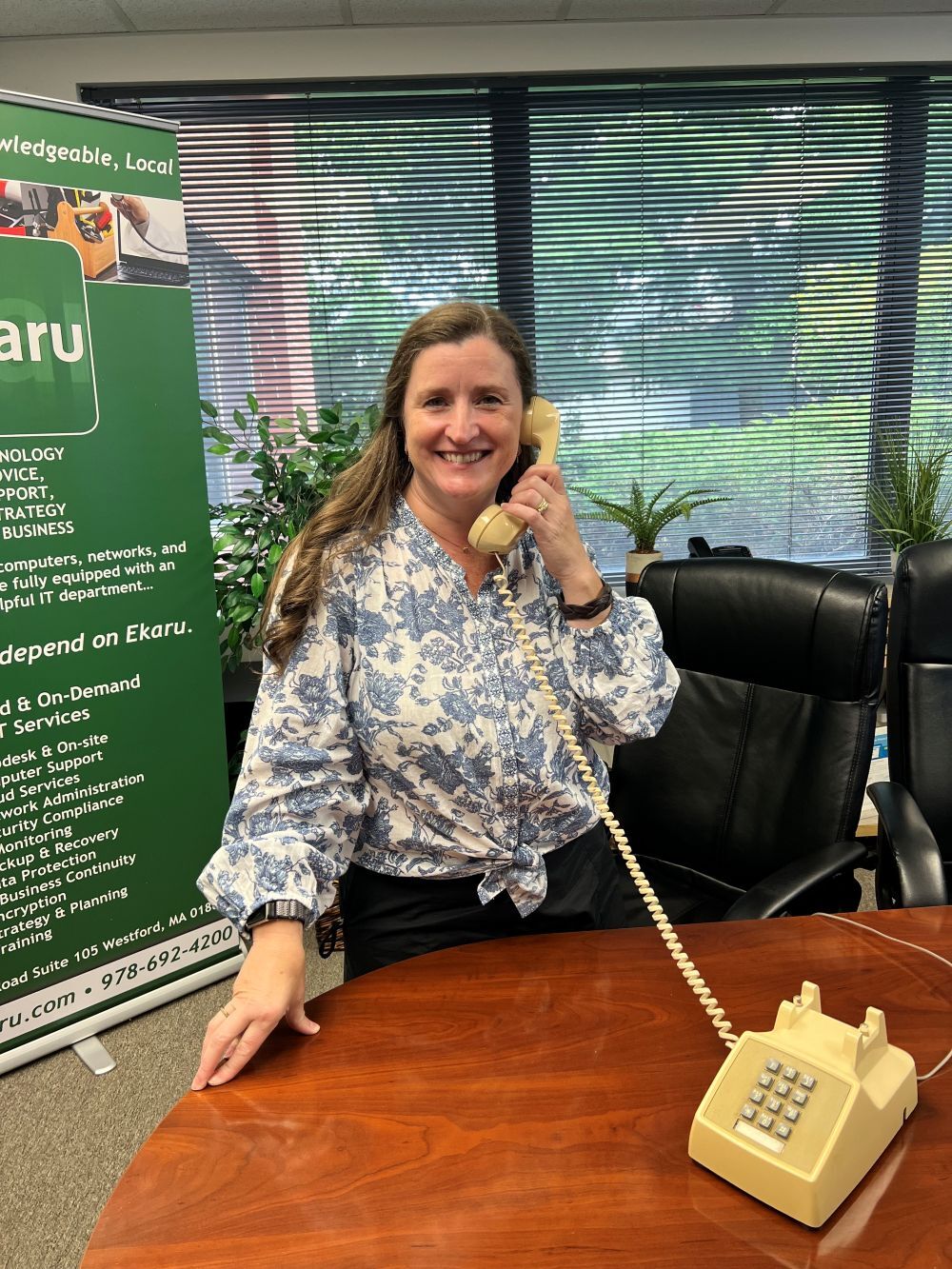
Linda also recently received one of these letters from Verizon, and it got us talking. She still keeps an old-fashioned corded phone in her basement - not because she's nostalgic for the days of tangled phone cords, but because it has served a very practical purpose: When one of those big New England storms comes through and the power goes out, that old phone still works. No electricity. No Wi-Fi. No modem or router. Just plug the phone into the copper phone jack and get a dial tone!
If you received a letter too, you may be wondering: What does this mean? Is my phone line going away? And do I need to do anything?
Read MoreTags: disaster recovery, Phone System

Most small business owners in greater Boston cannot confidently answer that question and that uncertainty is worth paying attention to.
Read MoreTags: managed IT services in Boston, managed service provider Boston, small business it support, it support boston, small business cybersecurity
If something about your business technology feels wrong today, that instinct is worth taking seriously. Whether it is a computer behaving strangely, an employee flagging an unfamiliar login, or a client who received a suspicious email from your address, the worst possible response is to convince yourself it is probably nothing and wait.
How you respond in the first hour can significantly affect the outcome. Here is exactly what to do.
Read More
Tags: cybersecurity, managed IT services in Boston, incident response, IT support, small business it support, small business cybersecurity
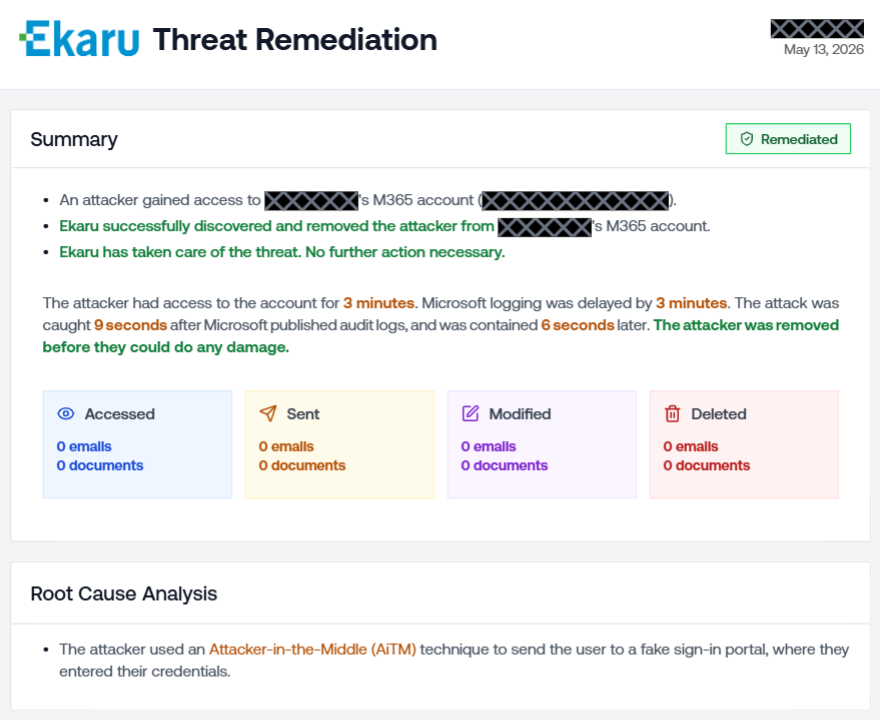
Imagine three small businesses facing the exact same cyber threat.
An attacker gets access to an employee’s email account. Maybe a password was stolen through phishing. Maybe the attacker found credentials from an earlier breach. However they got in, they now have something incredibly valuable: access to a real business email account.
From there, they can quietly watch.
They can learn who handles invoices. Who approves payments. Which vendors the company works with. How the owner communicates. They may even watch an existing email conversation and wait for exactly the right moment to step in.
This is Business Email Compromise, or BEC. And it’s one of the most financially damaging forms of cybercrime facing businesses today.
According to the FBI’s 2025 Internet Crime Complaint Center (IC3) Annual Report, Business Email Compromise was the second-highest crime type by reported financial losses, behind investment fraud. Businesses and individuals reported approximately $3.05 billion in BEC losses in 2025 from 24,768 complaints. Read the full FBI report here.
That’s billion with a “B.”
But statistics don’t always make cyber risk feel real.
So let’s look at what happens when the same kind of threat hits three different businesses.
Read MoreTags: eMail, cybersecurity, business email compromise

Not long ago, a scam email was easy to spot. Poor grammar, generic greetings, or suspicious links that looked nothing like the brand they were pretending to be. Most people learned to recognize them and felt reasonably confident in their ability to delete them before any damage was done, but that confidence is now a liability.
Phishing emails in 2026 are professionally written, visually convincing, and increasingly personalized. They reference your name, your company, your colleagues, and sometimes details about your business that feel like they could only come from someone who knows you. They arrive from addresses that look almost identical to the real thing, and create urgency that makes you want to act before you think.
In a recent workshop hosted by Ekaru, Ann Westerheim and Linda joined Lincoln Vierhus to break down exactly how Business Email Compromise and phishing attacks work and why they are so effective against small businesses in greater Boston. You can watch the full workshop here.
One of the clearest takeaways from that conversation was this: the emails that cause the most damage are not the obvious ones, but the ones that look completely legitimate right up until the moment they are not.
So how do you actually tell the difference?
Read MoreTags: phishing, email security, cybersecurity, managed IT services in Boston, business email compromise, small business it support, it support boston

Why Is My Computer So Slow? And What To Do About It
You sit down to start your day, open an application, and spend the next several minutes watching a progress bar that does not seem to be progressing. It is one of the most common frustrations in any workplace and for small businesses it is more than an inconvenience. Every minute your team spends waiting on a slow machine is a minute they are not serving clients, moving work forward, or doing what you are actually paying them to do.
The good news is that slow computers usually have a reason behind them, and most of those reasons are fixable. Here is what is actually going on and what you should do about it.
Read MoreTags: Windows, cybersecurity, IT services Boston, managed service provider Boston, small business it support, proactive IT
Microsoft released its July 2026 Patch Tuesday security update yesterday, and the numbers are impossible to ignore.
Read MoreTags: Microsoft, Managed Services, Microsoft Updates, Microsoft Security Patches, Microsoft 365, IT services Boston, Boston Ransomware, Microsoft Windows 11 Update, IT support