
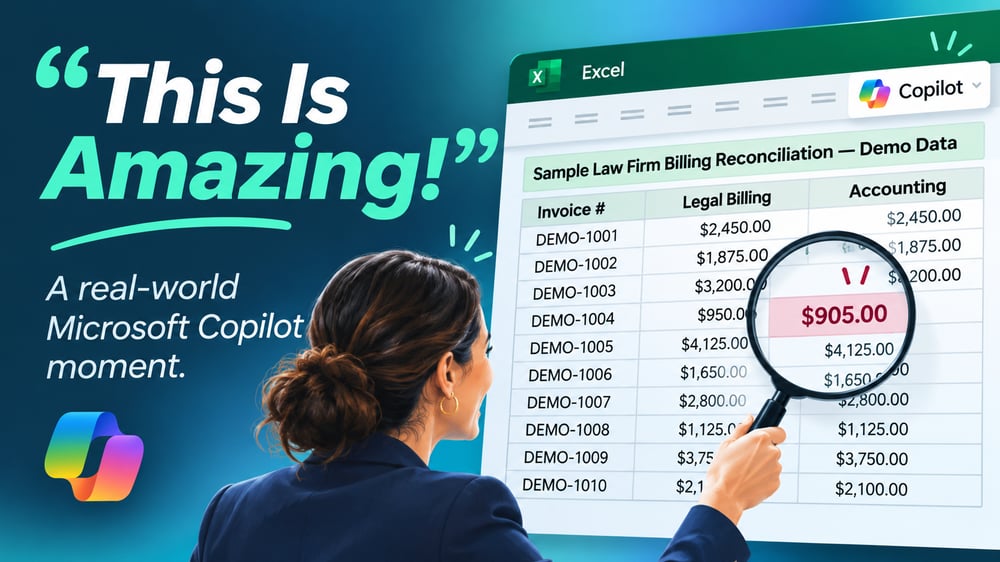
 Sometimes the most exciting technology breakthroughs aren't about installing something new or making a major investment. They're about discovering what you can do with technology that's already at your fingertips.
Recently, one of our lead engineers at Ekaru was working with a finance leader at a local law firm. He was trying to reconcile information between the firm's legal billing software and accounting system, and something wasn't adding up. He was working in Excel, trying to track down the discrepancy, and had a lot of questions about how to approach the problem.
If you've ever spent time staring at a complicated spreadsheet, trying to figure out why two sets of numbers don't match, you can probably relate. You know the answer is in there somewhere, but finding it can take time, patience, and a little Excel expertise.
As our engineer helped him work through his questions, he made a simple suggestion.
"Have you tried Copilot?"
The finance leader wasn't quite sure what to do with that suggestion. How would he use it? What would he ask?
Our engineer explained that he could simply ask Copilot the same questions he'd been asking him. Just describe the problem in plain English, the way you'd explain it to a coworker or someone helping you with Excel.
That was the turning point.
When the finance leader started exploring what Copilot could do, his reaction was immediate:
"Oh my God, this is amazing!"
We love moments like this. Not just because the technology is impressive, but because you can almost see the light bulb go on. Suddenly, something that seemed complicated becomes approachable. And instead of needing to know every Excel formula or feature, there's a new way to get help.
The real breakthrough wasn't necessarily solving that one spreadsheet problem. It was discovering a tool that could help with the next one, too.
Think of Copilot as Your Own Excel Coach
One of the biggest misconceptions about AI is that you need to know exactly what to ask. Maybe you've heard the phrase "prompt engineering" and you're a bit intimidated. People sometimes think there's a special language they need to learn, or that they have to understand the technology before they can use it effectively.
You don't.
Think about how you would ask a knowledgeable coworker for help. You might say, "I have two lists of invoices, and I can't figure out why the totals don't match. What's the best way to compare them?"
That's a perfectly reasonable place to start with Copilot.
You can ask questions like:
- "I have two lists of invoices from different systems. How can I find the ones that don't match?"
- "What's the easiest way to compare two columns in Excel?"
- "Can you help me understand what this formula is doing?"
- "How do I find duplicate invoice numbers?"
- "I'm not very experienced with Excel. Can you walk me through this step by step?"
Notice that none of these questions requires you to know anything about advanced Excel functions. You're simply describing what you're trying to accomplish.
And here's something especially helpful: You can keep asking questions.
If Copilot suggests a formula you don't understand, ask it to explain. If the answer seems too complicated, ask for a simpler explanation. If you need help with the next step, keep the conversation going.
It's like having a patient Excel coach available when you need one.
Of course, Copilot isn't perfect. It can make mistakes, and it's especially important to double-check calculations and results when working with financial information. But as a tool for learning, exploring ideas, and getting unstuck, it can be incredibly useful.
You May Already Have More AI Capabilities Than You Realize
Here's something that might surprise you: Depending on your Microsoft 365 subscription and your organization's settings, you may already have access to useful Copilot features in Excel, even without purchasing the full Microsoft 365 Copilot add-on.
We recently tested this ourselves at Ekaru. Two team members, one with the paid Microsoft 365 Copilot license and one without, opened the same sample spreadsheet and asked Copilot to identify a billing discrepancy. Both were able to get the correct answer. That's exciting because it means getting started with AI may be easier than you think.
So why would a business consider the paid Microsoft 365 Copilot license?
The additional value comes from broader capabilities across Microsoft 365. With the appropriate licensing and configuration, Copilot can help employees work with information across applications such as Outlook, Word, Teams, and SharePoint, including organizational content they're authorized to access.
For example, instead of only analyzing a spreadsheet that's open in Excel, a licensed user may be able to ask Copilot to help find and summarize relevant information from business documents, email conversations, and meetings.
The right choice depends on how your team works and what you want AI to help accomplish. At Ekaru, we believe the best place to start is by understanding what you already have, then identifying where additional capabilities could deliver meaningful value.
What About the Free Version of Copilot?
Microsoft has several Copilot experiences, and the names and licensing can be confusing. Here's the simplest way to think about them.
Microsoft Copilot (Consumer) provides general AI assistance for personal accounts. It's useful for brainstorming, answering questions, and learning new things, but it lacks business-level security and isn't connected to a work environment.
Microsoft 365 Copilot Chat is available to eligible Microsoft 365 business users without purchasing the full Microsoft 365 Copilot add-on. When accessed through an eligible work account, it includes enterprise data protection. It can help with general questions, writing, research, and certain file-based tasks, though it cannot automatically search across your broader company emails, chats, or documents.
Microsoft 365 Copilot, the paid business license, unlocks deep integration across apps like Word, Excel, PowerPoint, Outlook, and Teams. It automatically connects to organizational information, such as meetings, emails, and SharePoint files that the signed in user is authorized to access.
The important point is that the paid version isn't simply a more expensive chatbot. Its value comes from bringing AI assistance closer to the work your team is already doing.
And for businesses handling confidential information, it's important to understand how AI fits into your security practices. Microsoft 365 Copilot is designed to operate within Microsoft's enterprise security and compliance framework, respecting existing user permissions. Microsoft explains these protections in its official documentation on enterprise data protection for Microsoft 365 Copilot and Copilot Chat. However, proper configuration, access controls, and employee training are still essential.
At Ekaru, we believe businesses should be able to explore AI confidently, knowing that someone is helping them think through both the opportunities and the security considerations.
How to Find Copilot in Excel and Give It a Try
If you're thinking, "This sounds interesting, but where do I find Copilot?" you're not alone.
Depending on your version of Excel, your Microsoft 365 license, and your organization's settings, you may see the colorful Copilot icon on the ribbon at the top of Excel or in the lower-right corner of the window.
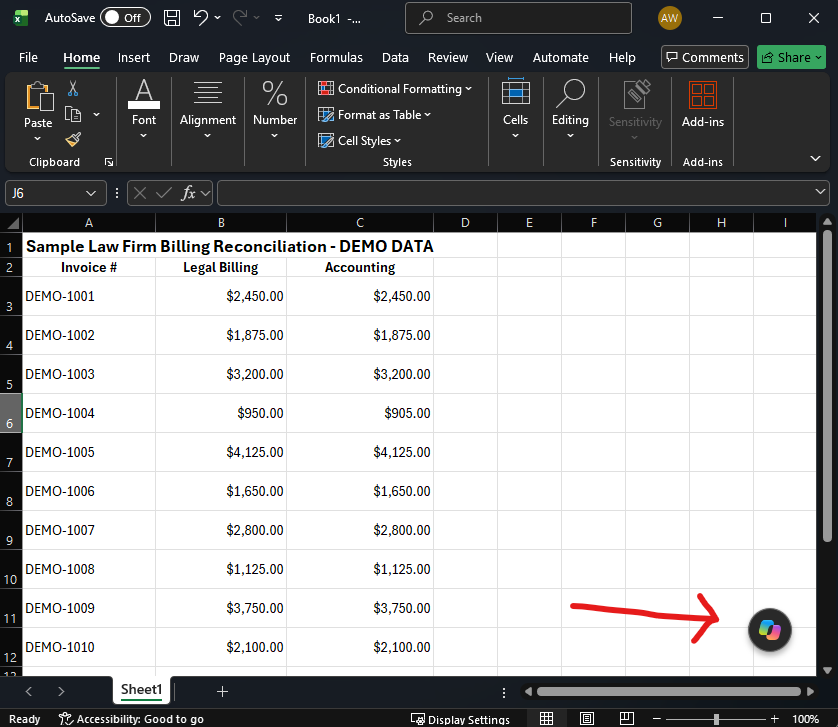
In one of our Microsoft 365 Copilot-enabled accounts, clicking the Copilot icon in the lower-right corner opens an invitation that says:
"Let's get started. Tell me what you'd like to do and we'll work on it together as we go."
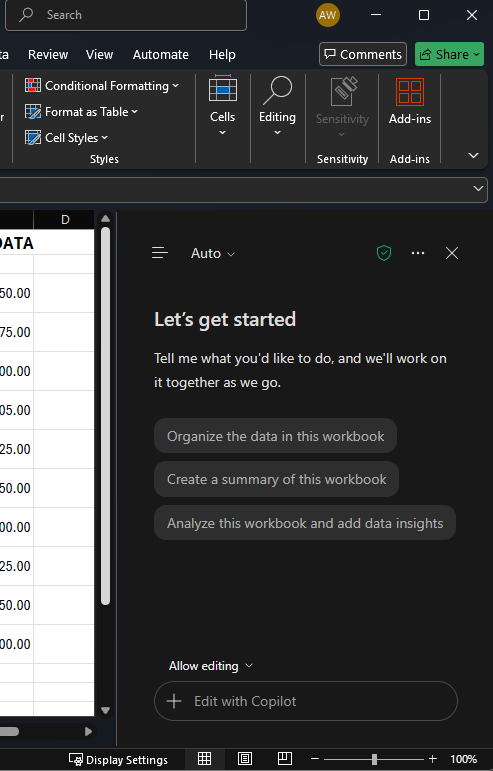
That's a pretty friendly invitation, isn't it?
You may also see suggested starting points such as "Research with Copilot," "Create a table," or "Teach me something about Excel." The options can vary, so your screen may look a little different.
Here's a simple way to get started:
- Open Excel and find Copilot. Look for the colorful Copilot icon. If you don't see it, your IT provider can help determine whether your account has access to the appropriate features.
- Start with a question. You don't need a complicated prompt. Try asking, "What's the easiest way to find duplicates in a list of invoice numbers?"
- Ask follow-up questions. If you don't understand the answer, say so. Ask Copilot to explain it more simply or walk you through the process.
- Try it with a familiar spreadsheet. Once you're comfortable, explore how Copilot can help with information you already work with, using only data approved for that AI environment.
- Check the results. Always review formulas, calculations, and suggested changes before using them for important decisions.
You don't need to master Copilot in one afternoon. Start with one question, one spreadsheet, or one task you've been putting off because you weren't sure how to tackle it. If you'd like to explore more, Microsoft has a helpful collection of Copilot in Excel guides and resources to help you learn what's possible.
The important thing is to get started. You might be surprised at how quickly a simple question turns into your own "aha!" moment.
Try This Yourself: Find a Spreadsheet Discrepancy
Let's go back to our law firm example. Imagine you have invoice information from two different systems, and you want to find out where the numbers don't agree.
You might start by asking Copilot:
"I have invoice numbers and amounts from our billing system and our accounting system. I want to identify any invoice numbers that are missing from either list, along with any amounts that don't match. Can you help me figure out the best way to compare them in Excel?"
That's it. No complicated commands. No special AI vocabulary.
Depending on the Copilot experience you're using, it may explain which Excel features could help, suggest formulas, or assist with analyzing the information in a supported workbook.
If the response is more technical than you'd like, you can simply ask, "Can you show me an easier way?" or "Can you explain that step by step?"
You could use a similar approach to compare inventory lists, review sales reports, organize customer information, or make sense of a spreadsheet someone else created.
The key is to start with a real question from your everyday work. That's often when the value of AI becomes clear.
It's Not Just About Excel
While our client's "aha!" moment happened in Excel, the same conversational approach can help with many other everyday tasks.
In Word, you might ask Copilot to help organize a rough draft, improve the clarity of a document, or summarize a lengthy report. In Outlook, it may help draft an email or summarize a conversation. In PowerPoint, it can assist with developing a presentation, and in Teams, supported Copilot features can help people catch up on meetings and important discussions.
The specific capabilities depend on your Microsoft 365 licensing, configuration, and the applications you're using, but the underlying idea is the same.
Instead of wondering, "What can AI do?" try asking yourself, "What's something I spend too much time doing that I wish were easier?"
That might be the perfect place to begin. And by the way, Microsoft has excellent learning resources: https://learn.microsoft.com/en-us/
Technology Is More Valuable When People Know How to Use It
At Ekaru, we spend a lot of time helping local businesses keep their technology secure, reliable, and running smoothly. But there's another part of our work that's just as rewarding: helping people discover how technology can make their day a little easier.
Our engineer could have simply answered the finance leader's Excel questions and moved on. Instead, he introduced him to a tool that could help him continue learning and solving problems on his own.
That's what makes this story so memorable to us.
We also know that simply purchasing an AI license isn't enough. Businesses need to understand which tools are appropriate, how to configure them securely, and how to help employees use them effectively. That's where thoughtful AI planning and a little hands-on guidance can make a real difference.
You don't have to become an AI expert to benefit from AI. You just need a good place to start and someone you trust to help you along the way. AI is here - Start exploring!
Curious about Microsoft 365 Copilot and whether it makes sense for your business? We'd be happy to help you understand your options, explore the benefits of the paid business license, and identify practical ways your team could use it securely and effectively.
No pressure, no complicated technical talk. Just a friendly conversation about how to make technology work better for you.
About the author:

Ann Westerheim, PhD is the Founder and President of Ekaru, a Technology Service Provider of cybersecurity and IT services for small and medium businesses in the greater Boston area. Ann is an accomplished technology innovator and leader with three engineering degrees from MIT. She has twenty years of high tech experience in research, advanced development, product development, and as an entrepreneur. Her career has spanned a vast range of technology endeavors including research in thin film semiconductors and superconductors, microprocessor fabrication, development of early Internet medical applications, and now focusing on the application of technology in business. She has an avid focus on the "last mile" of technology and decreasing the digital divide.