.png)
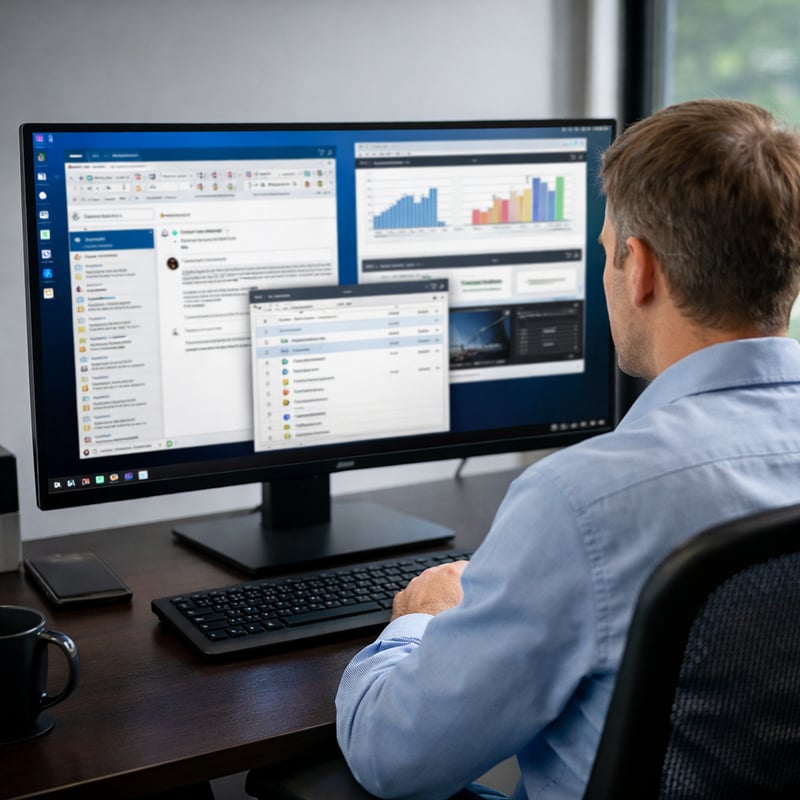
You did it. You upgraded to that big, beautiful, high-resolution monitor. Maybe it’s 27 inches. Maybe it’s 4K. Maybe it looked absolutely stunning in the store.
Then you plugged it in…
…and suddenly your email looks microscopic.
Your desktop icons are tiny.
And you feel like you need a magnifying glass just to open a folder.
If this sounds familiar, you are not alone.
We get this call a lot. And the good news? The fix is simple - once you know what to change.
The Mistake Most People Make
When everything looks too small, many people head straight to Display Settings and lower the screen resolution.
It makes things bigger. Problem solved… right?
Not exactly.
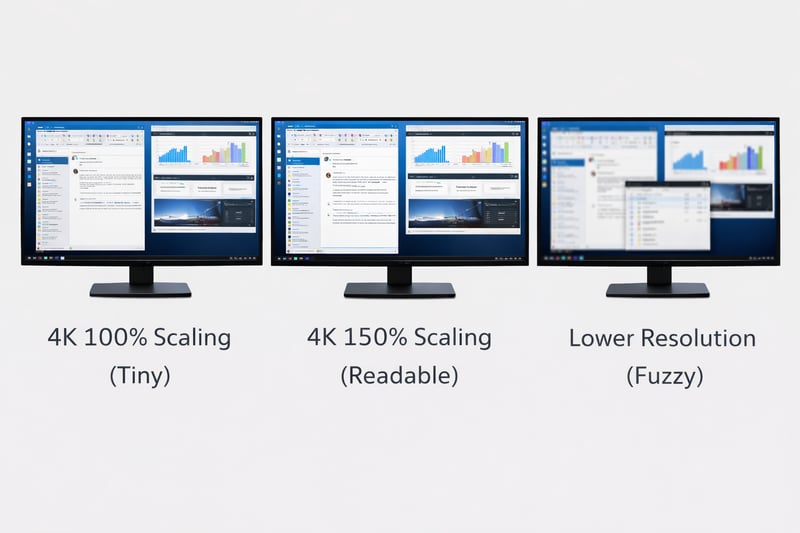
Lowering the resolution on a high-resolution monitor is a bit like buying a luxury car and then driving it in first gear everywhere. You’re not using what you paid for, and things may actually look slightly blurry or less crisp.
Instead, what you want to adjust is scaling.
Resolution vs. Scaling (In Plain English)
Let’s make this simple:
- Resolution = How many pixels your screen uses.
More pixels = sharper, crisper image. - Scaling = How large text, apps, and icons appear on top of that resolution.
Think of resolution as the quality of the paper, and scaling as the size of the font printed on it.
You want the high-quality paper.
You just need bigger print.
Why Big Monitors Make Things Look Tiny
Here’s what’s happening behind the scenes:
Modern monitors - especially 4K screens - pack a lot of pixels into the display. That’s what makes text and images look incredibly sharp.
But Windows (and sometimes macOS) doesn’t automatically know how large you prefer things to appear. So it shows everything at 100% scale - which can feel tiny on a high-density display.
We recently helped a business owner who thought something was wrong with their eyesight after upgrading their monitor. Nothing was wrong at all - the scaling was just set too low.
A 30-second adjustment made everything comfortable again, and crystal clear.
How to Fix It on Windows (Step-by-Step)
If you’re using Windows 10 or Windows 11:
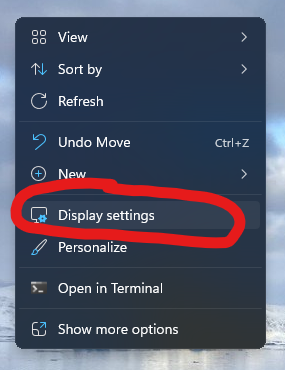
1. Right-click on your desktop
Choose Display settings.
2. Look for “Scale and layout”
You’ll see something like:
- Scale: 100% (Recommended)
- Display resolution: 3840 x 2160 (Recommended) 😀 And yes - the screenshot below is from my own system. It’s not a fancy 4K setup… but the settings work the same way!
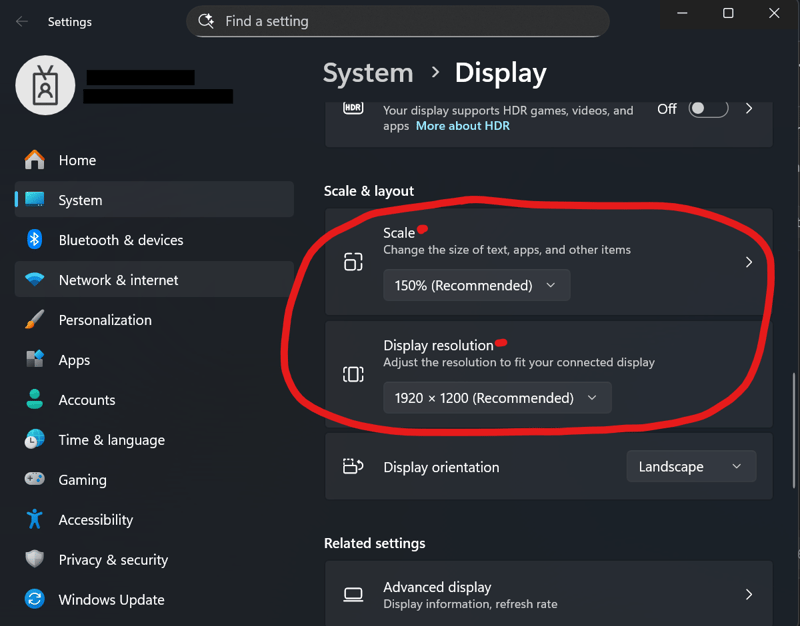
3. Change the Scale - NOT the Resolution
Click the drop-down next to Scale.
Try:
- 125%
- 150%
- or even 175% (depending on your comfort)
Your screen may briefly flicker — that’s normal.
4. Leave the Resolution Set to “Recommended”
Don’t change this unless an IT professional specifically advises you to.
That’s it.
Everything should now look larger - but still crisp and sharp.
How to Fix It on a Mac
If you’re using macOS:
1. Click the Apple menu
Go to System Settings (or System Preferences).
2. Click Displays
3. Select “Scaled”
You’ll see options like:
- Larger Text
- Default
- More Space
Choose Larger Text to make items bigger while keeping clarity.
Again - avoid manually forcing a lower resolution unless there’s a specific reason.
What If It Still Doesn’t Look Right?
Sometimes apps need to be closed and reopened. Occasionally a program doesn’t handle scaling well (older software is especially prone to this).
If that happens, it’s usually a quick fix - but it’s worth having someone take a look.
Why This Matters for Small Businesses
When your screen feels uncomfortable:
- You strain your eyes.
- You get headaches.
- You avoid using the new monitor.
- Productivity drops.
And that expensive upgrade starts feeling like a mistake.
We never want technology to feel frustrating - especially when you’ve invested in something that should make your work easier.
Often the issue isn’t the monitor. It’s just a simple setting that wasn’t adjusted.
A Friendly Reminder
If you just bought a high-resolution monitor:
✅ Keep the resolution at the recommended setting
✅ Adjust scaling to your comfort
✅ Don’t settle for blurry text
And if you’re unsure, it’s completely okay to ask for help.
We’ve walked plenty of people through this exact fix in just a few minutes. No complicated tech talk. Just practical adjustments that make your day easier.
If your technology isn’t feeling quite right - whether it’s displays, security, or something else - we’re always happy to have a conversation. No pressure. Just helpful guidance.
Because technology should work for you - not make you squint at it.
Technology Should Feel Comfortable
A new monitor should make your day easier - not leave you squinting.
Small adjustments like scaling settings are easy to miss, and most people don’t even know they exist. That’s completely normal. Technology keeps changing, and no one has time to keep up with every little setting.
That’s what we’re here for.
If something about your setup just doesn’t feel right - whether it’s a display issue, a security question, or a nagging “Is this configured correctly?” feeling - we’re always happy to talk it through.
No pressure. No jargon. Just practical help from a local team that cares about making technology work the way it should.