.png)
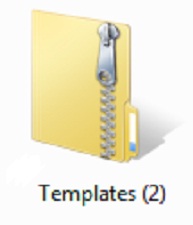 If you need to send an email to someone with a large file or perhaps with many smaller files, you can compress the files to save space and also save the hassle of attaching several files one by one by selecting a compressed folder. The process is easy, and it doesn't require any extra software since the function is built right into Windows. Simply find the file or folder you want to compress, right click on the file or folder and select Send To and then click Compressed (zipped) Folder. The new file folder has a zipper on it to show its "zipped", and you can rename it to anything you want.
Compressing files and folders makes it a lot easier to collaborate with multiple files, and helps keep the file size down so you don't need to break apart the communication into several emails. The typical email size limit is 10M, so this is good to use with larger files. Although you may have a bigger limit, you don't necessarily know what your recipient has for a limit so this is a good trick to know.
To extract the entire contents of the folder, right click on the folder and select Extract All.